2.2 CSS Position
HTML and CSS
Section titled “HTML and CSS”This video demonstrates a workflow for creating a new repo on Github, editing in Codespaces, formatting code with the Prettier extension, previewing the work with Live Server, staging and committing changes back to the repo, and viewing the work published on GitHub pages.
This video demonstrates using a span tag to apply styles to elements in the HTML page. We apply the display property set to inline block to keep our letters in one line, and then use CSS to rotate each letter. We also use negative margins to tighten up the negative space in our layout.
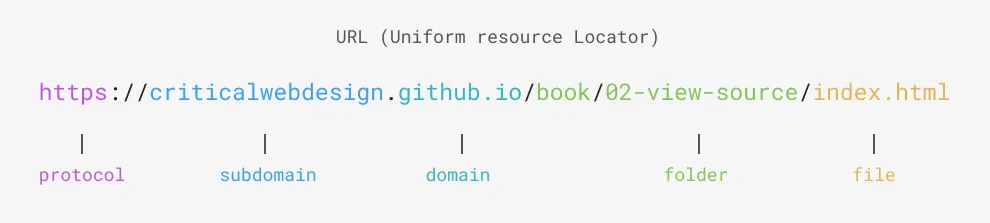 This figure shows the primary components of a URL for a “breakfast burrito”
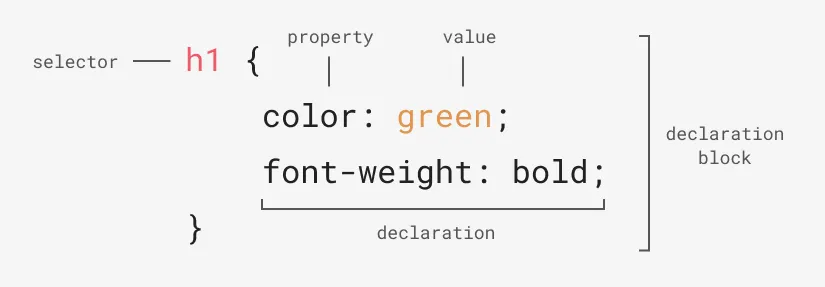 This CSS diagram shows the anatomy of a rule, including the selector, and properties and values in the declaration block.
Classes vs. Ids
Section titled “Classes vs. Ids”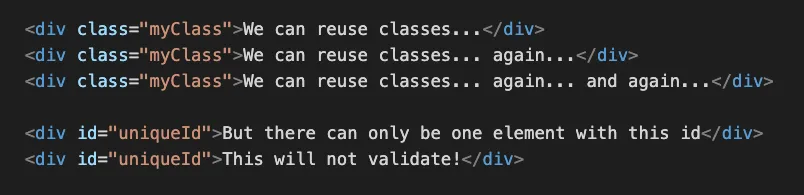 Class attributes can be reused in HTML, but IDs can be just used once.
CSS Box Model
Section titled “CSS Box Model”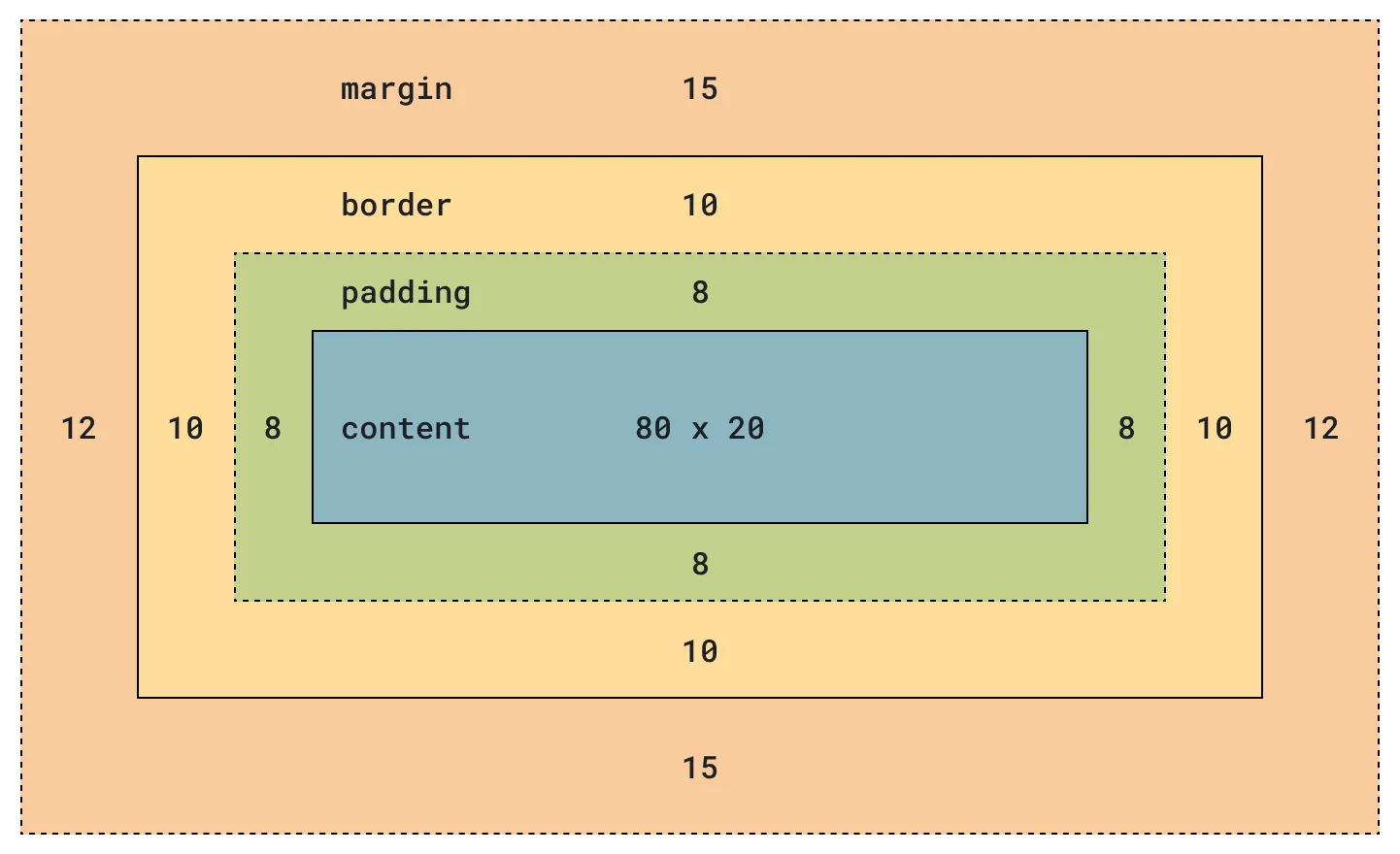 A diagram showing the margin, border, padding, and content components of the CSS box model.
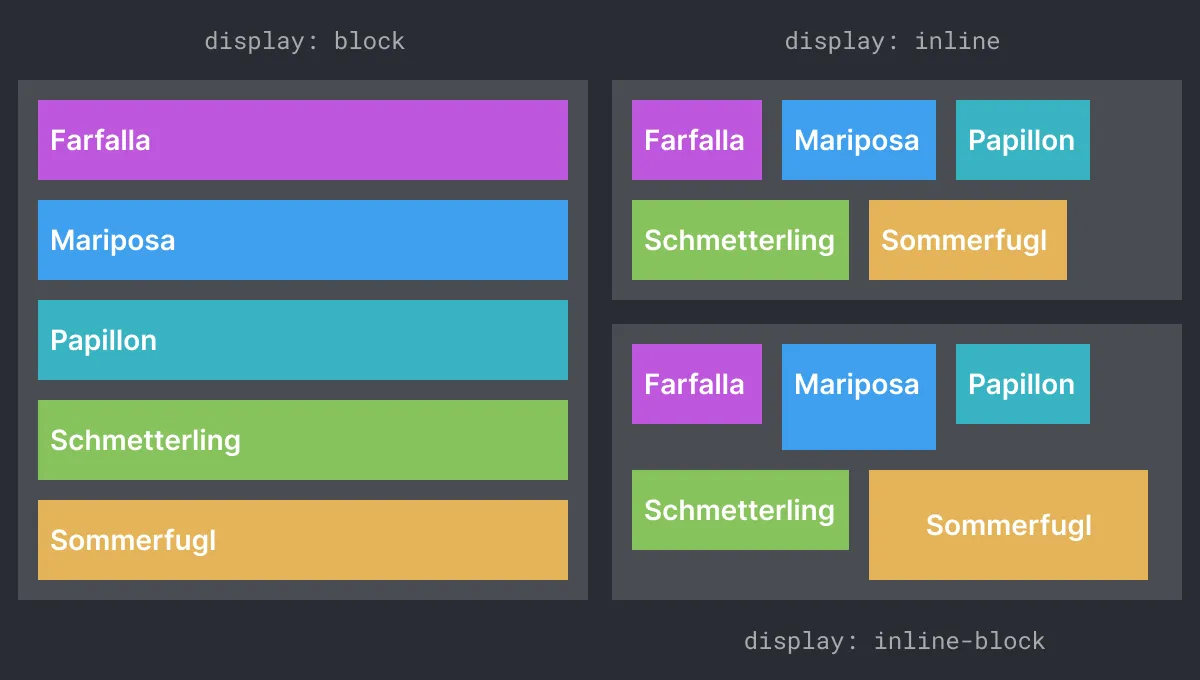 An example showing the difference between block-level, inline, and inline-block elements flow in a page.
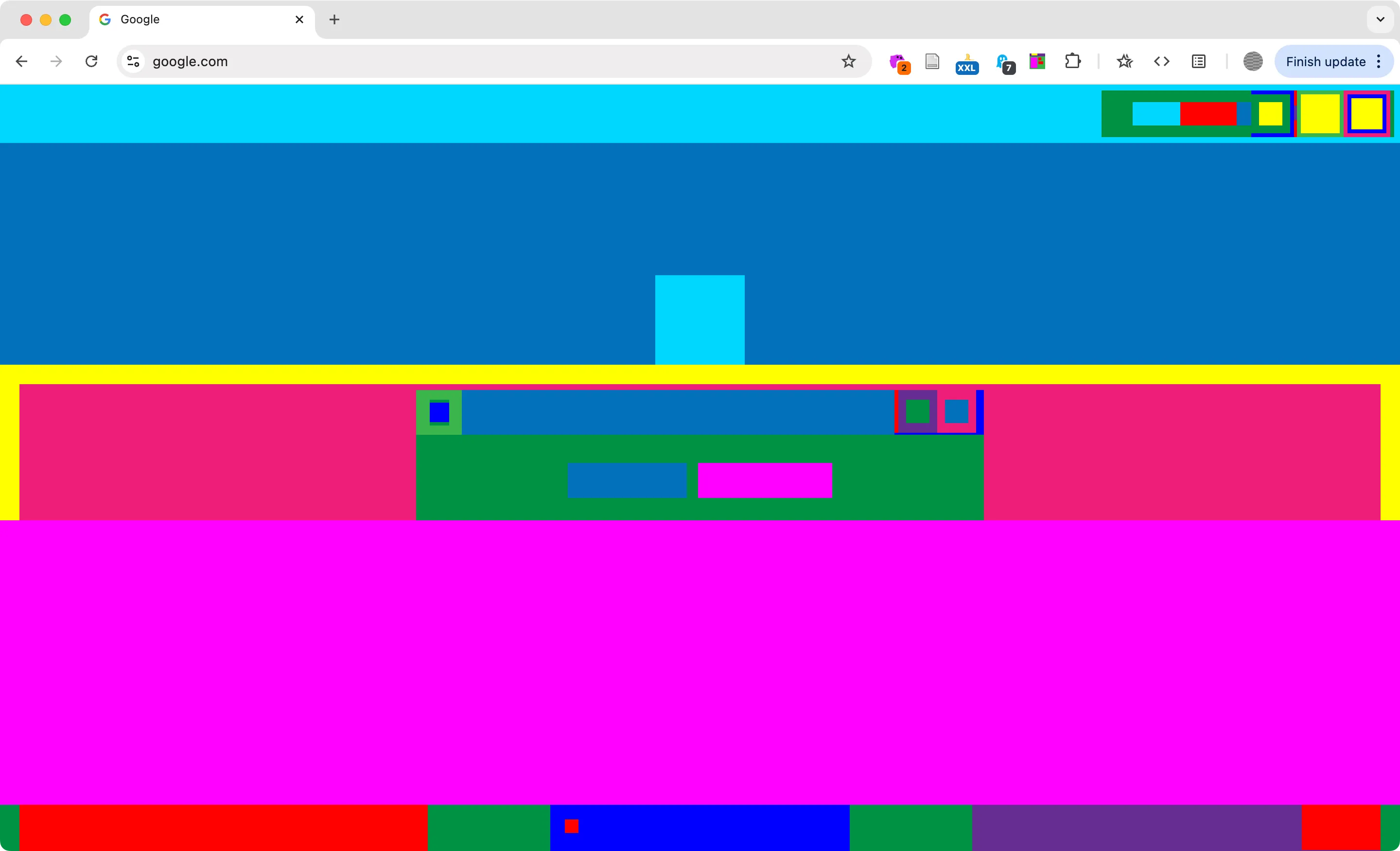 Abstract Browsing by Rafaël Rozendaal and Reinier Feijen (2014) is a browser extension that transforms all block-level elements on every webpage into colorful abstract patterns.
CSS Position
Section titled “CSS Position”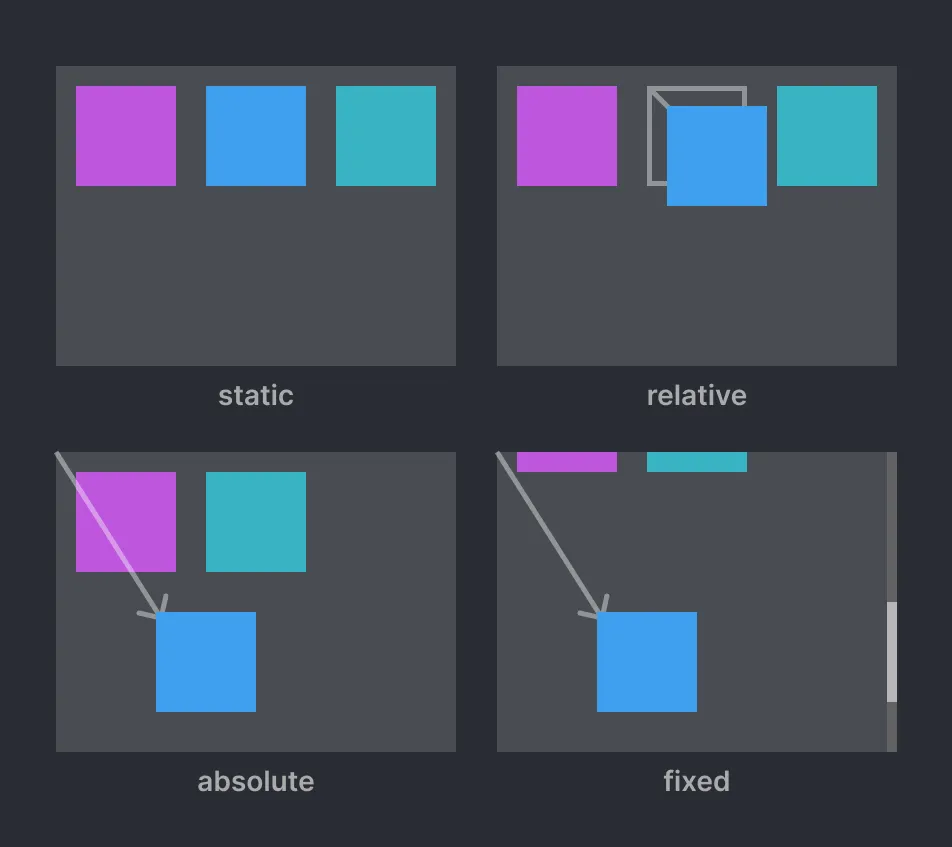
- Static is the default, and causes the element to “go with the flow” of the page.
- Relative position means an element’s position can be offset using the top, right, bottom, or left properties.
- Absolute position will make the element’s origin the top left of a page.
- Fixed position is the same as absolute, except the element will stay fixed even if the page scrolls.
Using CSS Display and Position Properties
Section titled “Using CSS Display and Position Properties”Edit the box model properties in CSS.
- Open view-source/index.html in VS Code. In the
<style>element, add a new CSS rule for paragraphs and set their display property to inline-block. If you test your work you’ll see they are no longer taking up the full width.
p { display: inline-block;}- Update the
prule in CSS to reflect the code sample below. The code shown in gray was already added. You can see the updated rule adds spacing between the paragraphs.
p { display: inline-block; width: 70px; height: 20px; margin: 20px 20px 0 0; padding: 10px; background-color: lavender;}- Another way to affect an element’s position is by completely removing it from the flow of the page. Add a new class to your CSS using the code below. Then add this class to the last paragraph element on the page. This will cause the paragraph to be positioned relative to the top left corner of the browser window. See this codepen for more https://codepen.io/owenmundy/pen/LYmRqob
.anywhere { position: absolute; top: 350px; left: 180px;}CSS Specificity
Section titled “CSS Specificity”Unless you explicitly override them, all styles set in parent elements are inherited by the child elements. If you set a parent element purple, then all the child elements will also be purple. The word “cascading” in the CSS name refers to the way the language resolves conflicting rules in a specific order. When conflicts arise the most important style wins. The term for how the CSS cascade determines the winner is specificity (Figure) and it primarily depends on two factors: what kind of selector you use for the rule and where in the document you apply it. One rule of thumb is, “the closer the rule is applied to the element to be styled, the more likely it will override the others.” Browsers give priority to rules included as inline styles first, then it will look at the head of the page, then an external stylesheet, and lastly it will apply any browser defaults.
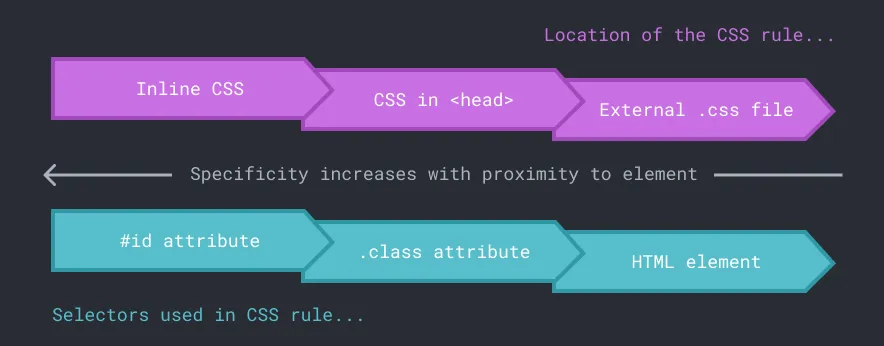 CSS specificity describes how likely a rule will be used by the browser over others applied to the same elements.